
Sharing, two ways
A quick link for anyone, or direct access for people you choose by email — Muzlo now gives you two different ways to let others listen to your tracks.
Your Muzlo library is private by default — nobody sees it but you. Sharing is something you turn on deliberately, track by track or album by album, and you get to choose exactly how open it should be.
There are two ways to do it, and they solve different problems.
A link for anyone
The simplest option: turn on a link for a track or an album, copy it, send it however you like. Anyone with the link can listen — no Muzlo account, no login, nothing to set up on their end.
Open Share on a track or album and stay on the Link tab. Flip the toggle on, copy the URL, and you're done.
Turn it off any time and the link stops working immediately. If it ever ends up somewhere you didn't want, regenerate it — the old link dies instantly and a fresh one takes its place.
Sharing with specific people
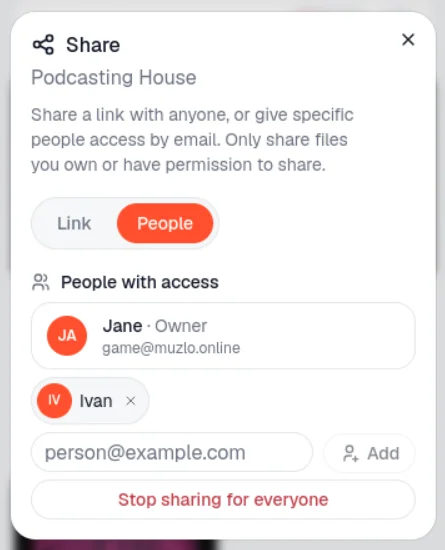
Sometimes a link isn't what you want — you want to share with someone, not with anyone who happens to get the link. That's what the People tab in the same Share dialog is for: add someone by their email address, and if they have a Muzlo account, the track or album shows up in their own library, automatically.
A few things worth knowing about how this works:
- Everyone in the group can see who else is in it. Sharing isn't a one-way, hidden relationship — if you're in a shared track or album, you can see the full list of people who have access, owner included.
- Anyone already in the group can add more people. It's not locked to just the original owner — if you were added to something, you can bring someone else in too.
- Leaving is always your own call. Anyone in the group — including the person who shared it — can remove themselves at any time. You're never stuck with access you didn't ask for, and you're never stuck sharing with someone you'd rather not.
What it looks like on the other end
If someone shares a track or album with you, it doesn't sit in some separate folder you have to remember to check. It shows up mixed in with your own library — in Audios, Albums, Artists, even the Home page's recently added — sorted alongside your own files by whenever it was shared with you. A small badge marks it as shared and shows who it came from.
You can play it, download it, and even favorite it — favoriting a shared track is entirely your own, independent of whatever the owner has favorited on their side. What you can't do is edit its metadata or turn on further sharing for it — that stays with whoever owns the file.
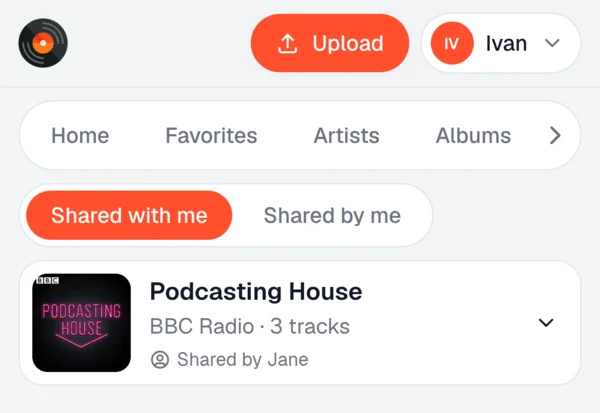
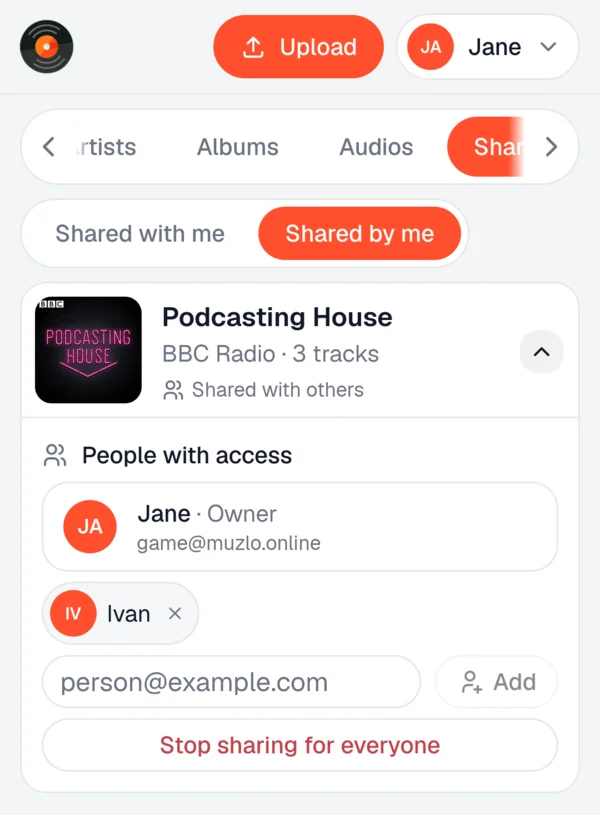
Want a single place that lists everything shared with you, and everything you've shared out? That's the Shared page under your library — two tabs, one for each direction.
Shared with me collects everything other people have sent your way. Each entry shows the cover, title, who shared it, and how many tracks are in it if it's an album.
Shared by me is the mirror image — things you've shared with others. Expand an entry to see who has access, add someone by email, or stop sharing for everyone in one go.
Deleting a shared file doesn't yank it out from under anyone
If you delete a track or album that you've shared with people, it doesn't vanish for them. Your copy disappears from your own library right away, but the people you shared it with keep their access — until they choose to remove it from their own library, or you stop sharing it outright. Nobody loses something they were listening to because you cleaned up your library on your end.
One thing to keep in mind: if a track belongs to an album you shared as a whole, removing just that one track removes access to the entire album for that person, not just the one track — Muzlo will warn you before that happens if you try it from the shared side, so it's never a surprise.
Between a quick public link and inviting specific people by email, you've got the right tool whether you're sending a track to one friend or putting a whole album out where anyone with the URL can hit play.