Listen anywhere
Play on the web, your phone, or your watch from the same private library — with full sync so every device stays up to date.
How it works
Build a private library of podcasts, lectures, music, and more on the web. Keep it fully synced with the Android app and your watch — resume where you left off, listen offline, and share only when you choose.
Step 01
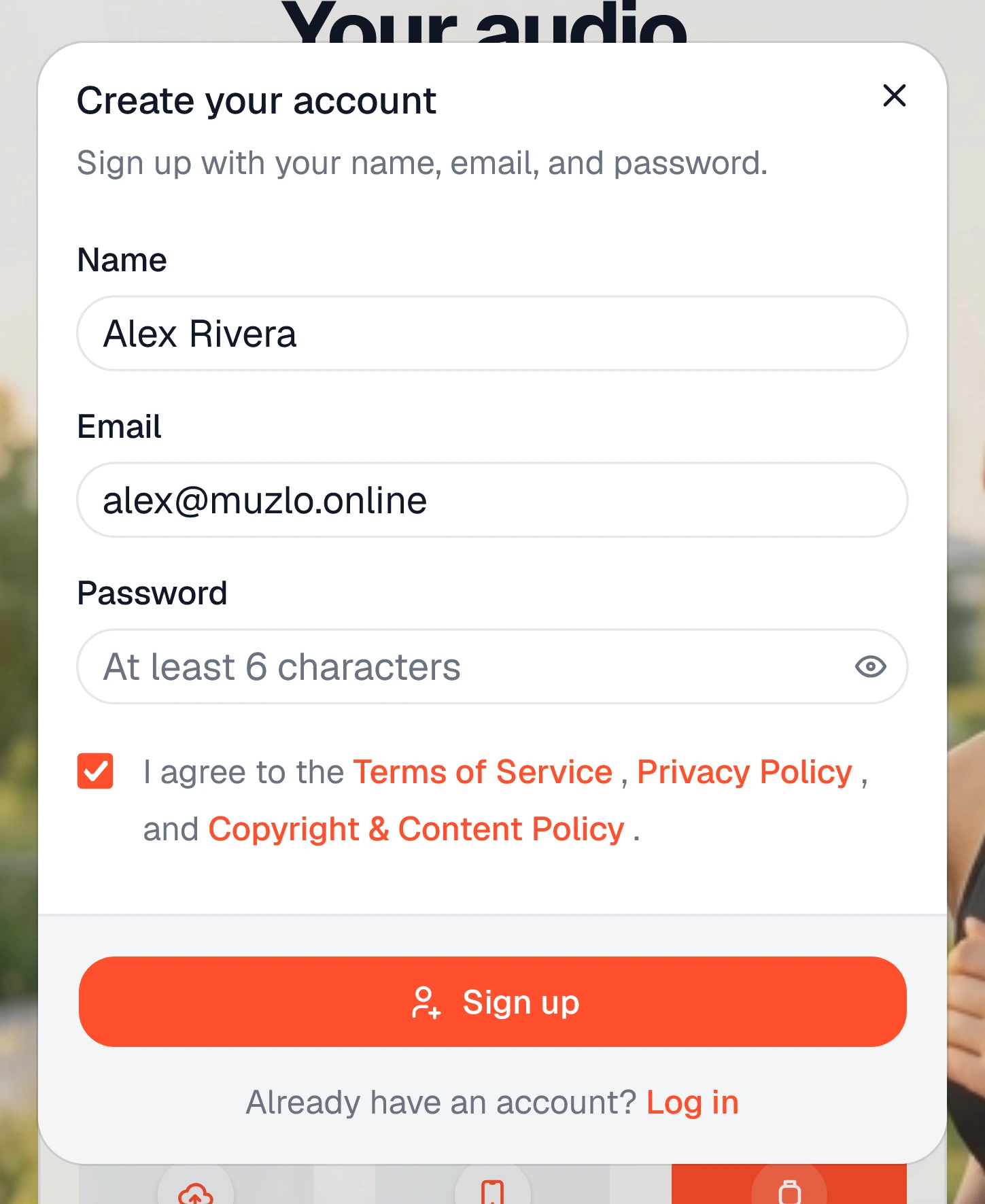
Sign up with your name, email, and password. After registration you land in your private library — one account for web, phone, and watch.
Your tracks live in that private cloud library first — the source of truth for your account. When you sync later, copies are stored locally on your phone and watch for offline listening. Until you enable a share link, only you can access your files.
Step 02
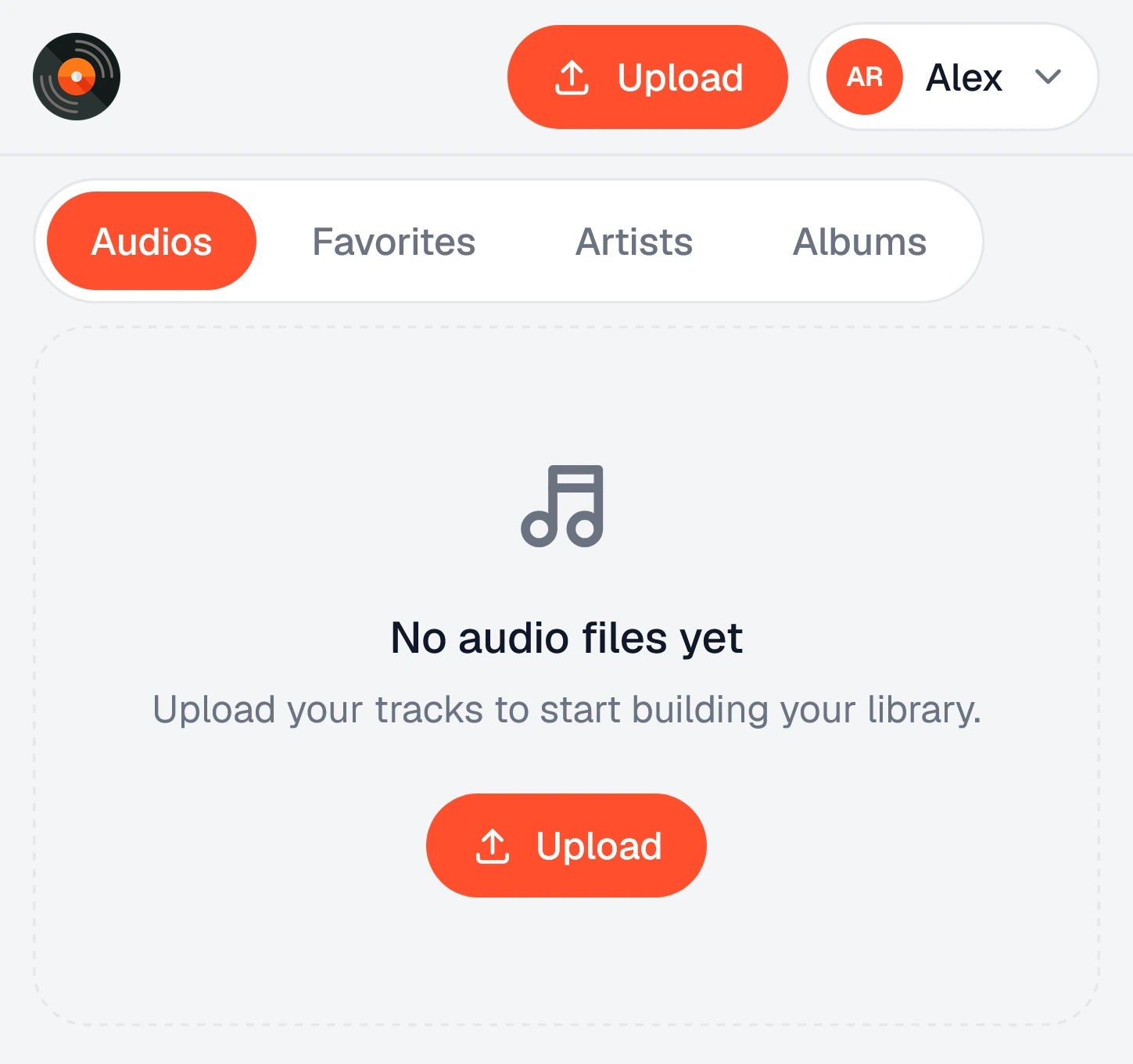
Use Upload in the header to add podcasts, lectures, music, or any supported audio file. Long listens belong here — Muzlo stores them privately and reads metadata such as title, artist, and cover.
Step 03
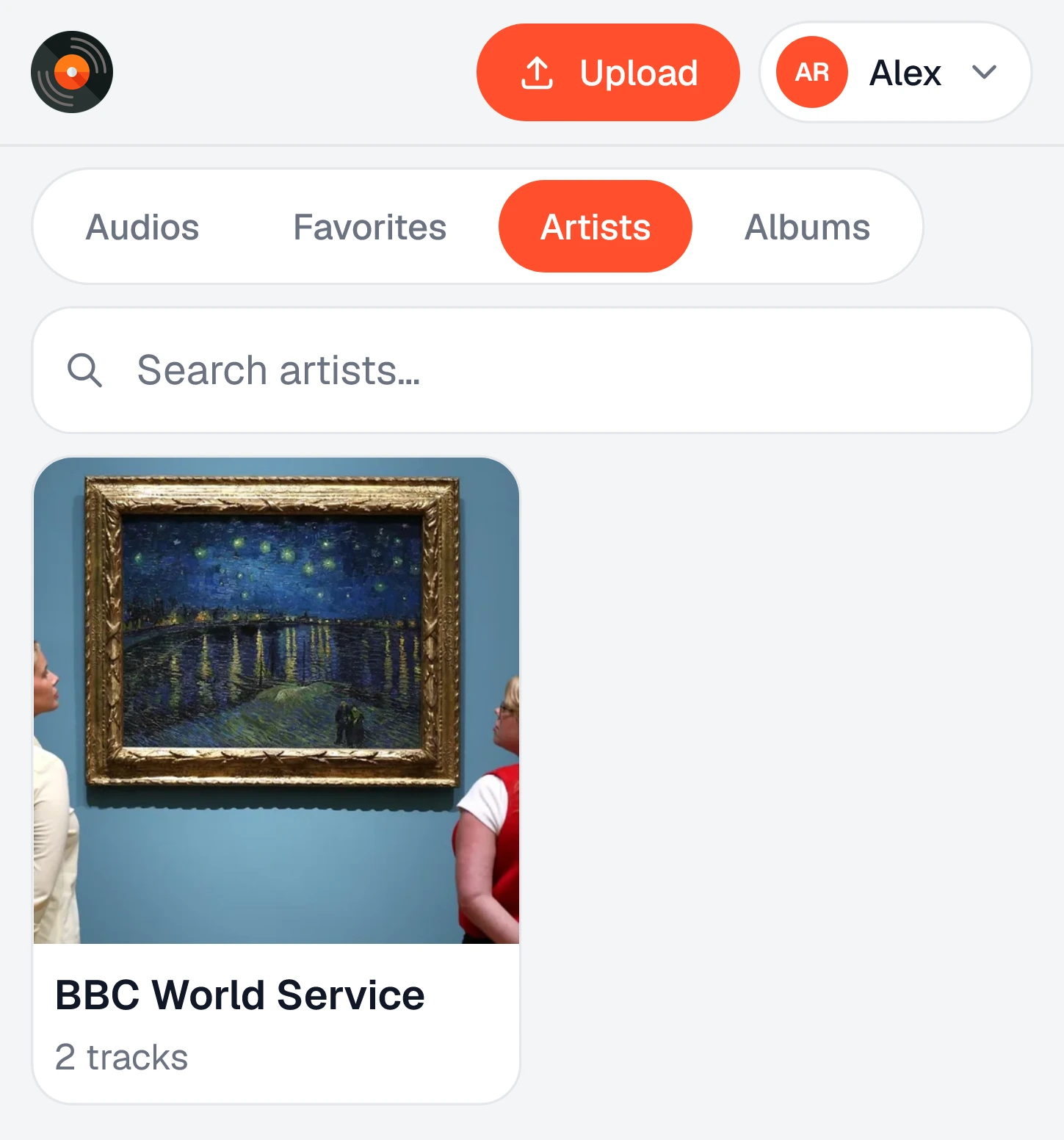
Switch between Audios, Favorites, Artists, and Albums. Search by title, artist, or album, pick grid or list view, mark favorites, and optionally enable a share link when you want someone else to listen or download.
Step 04
Tap a cover to play on the web. Pause a podcast or lecture and continue later — your place in the track stays with your account when you move to another device.
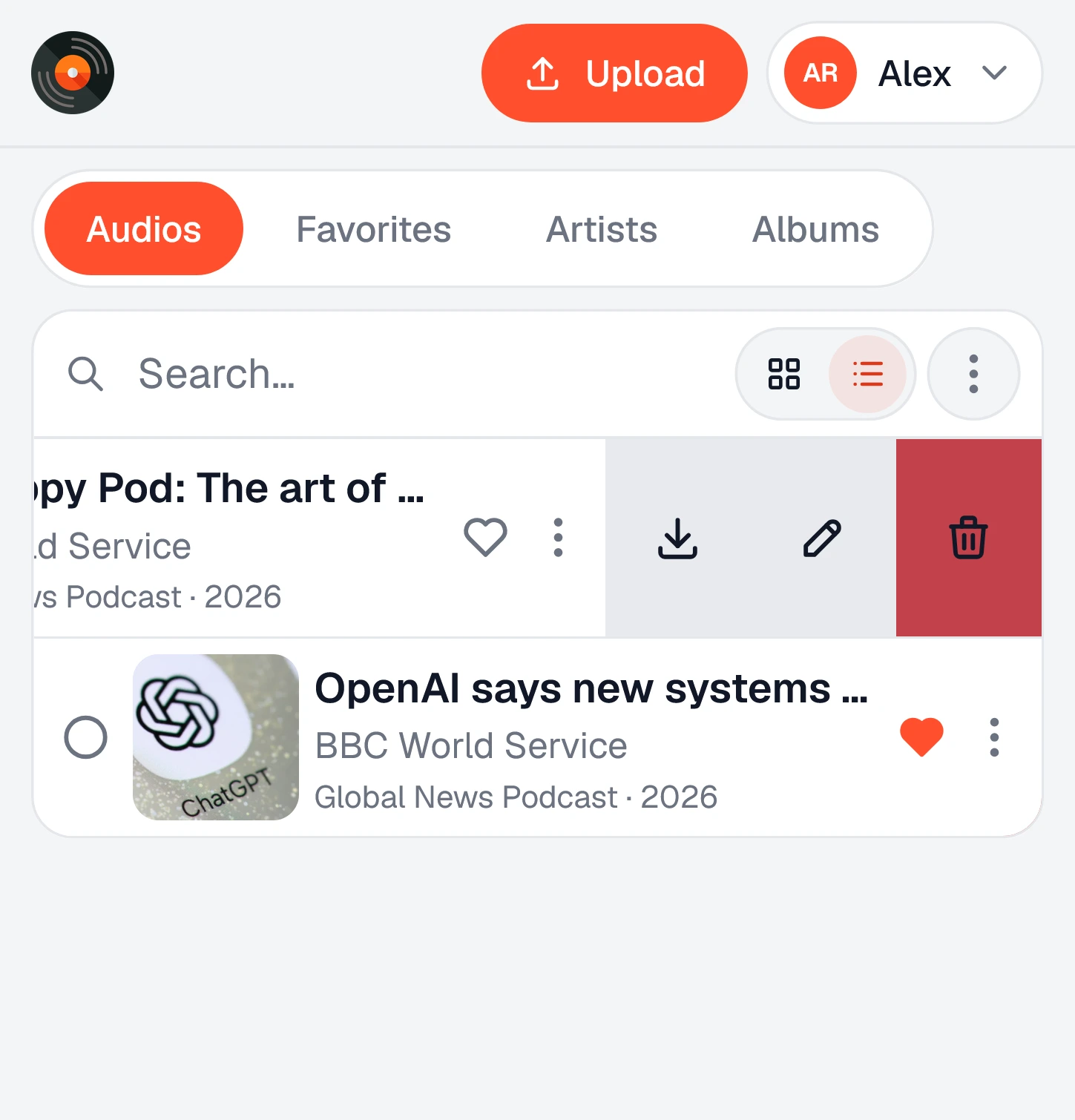

Step 05
Install the Muzlo Android app, sign in with the same account, and sync your full library to your phone. Tracks are saved locally for offline playback — the same library you manage on the web.

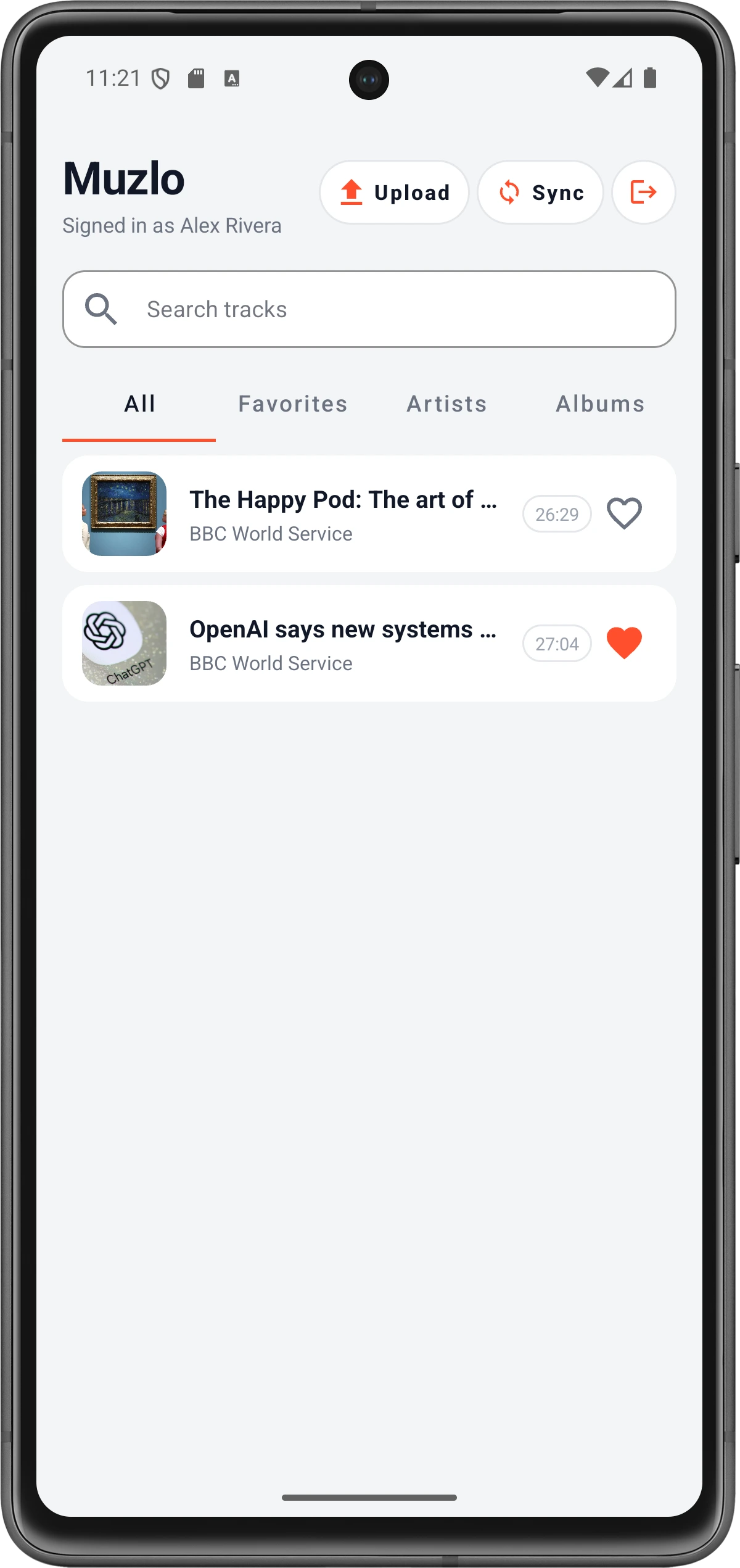
Step 06
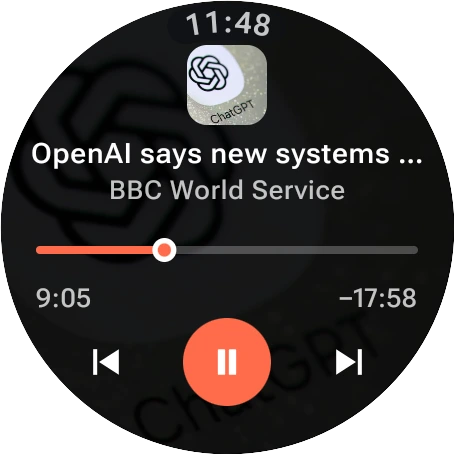
Send synced tracks from your phone to your watch. Once transferred, listen offline — ideal for runs, workouts, and travel without your phone, while progress stays in sync with your account.
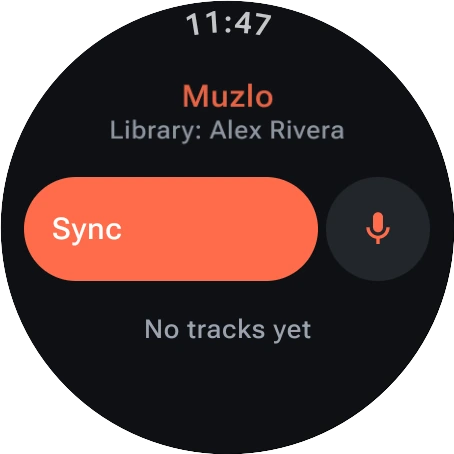
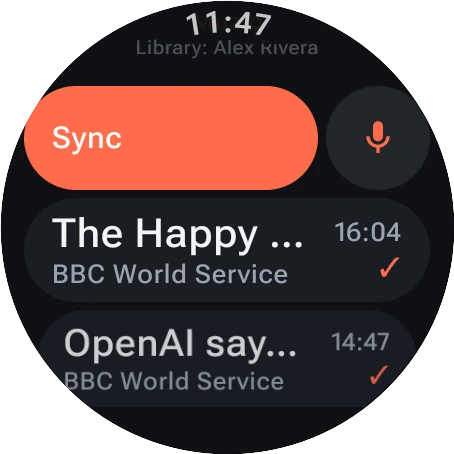
Stay in sync
One private library that follows you — so long-form audio stays easy to start, pause, and continue wherever you are.
Play on the web, your phone, or your watch from the same private library — with full sync so every device stays up to date.
Playback position syncs across your devices, so you can pause on one and continue from the same moment on another.
Ideal for podcasts, lectures, audiobook-style files, and any long audio you want offline — on a run, a commute, or at your desk.
Create your library on the web, sync to phone and watch, and pick up where you left off.